Firmware Update Guide
Step-by-step instructions to update your PWDSTK device firmware. Follow the guide below for your operating system.
macOS Update Instructions
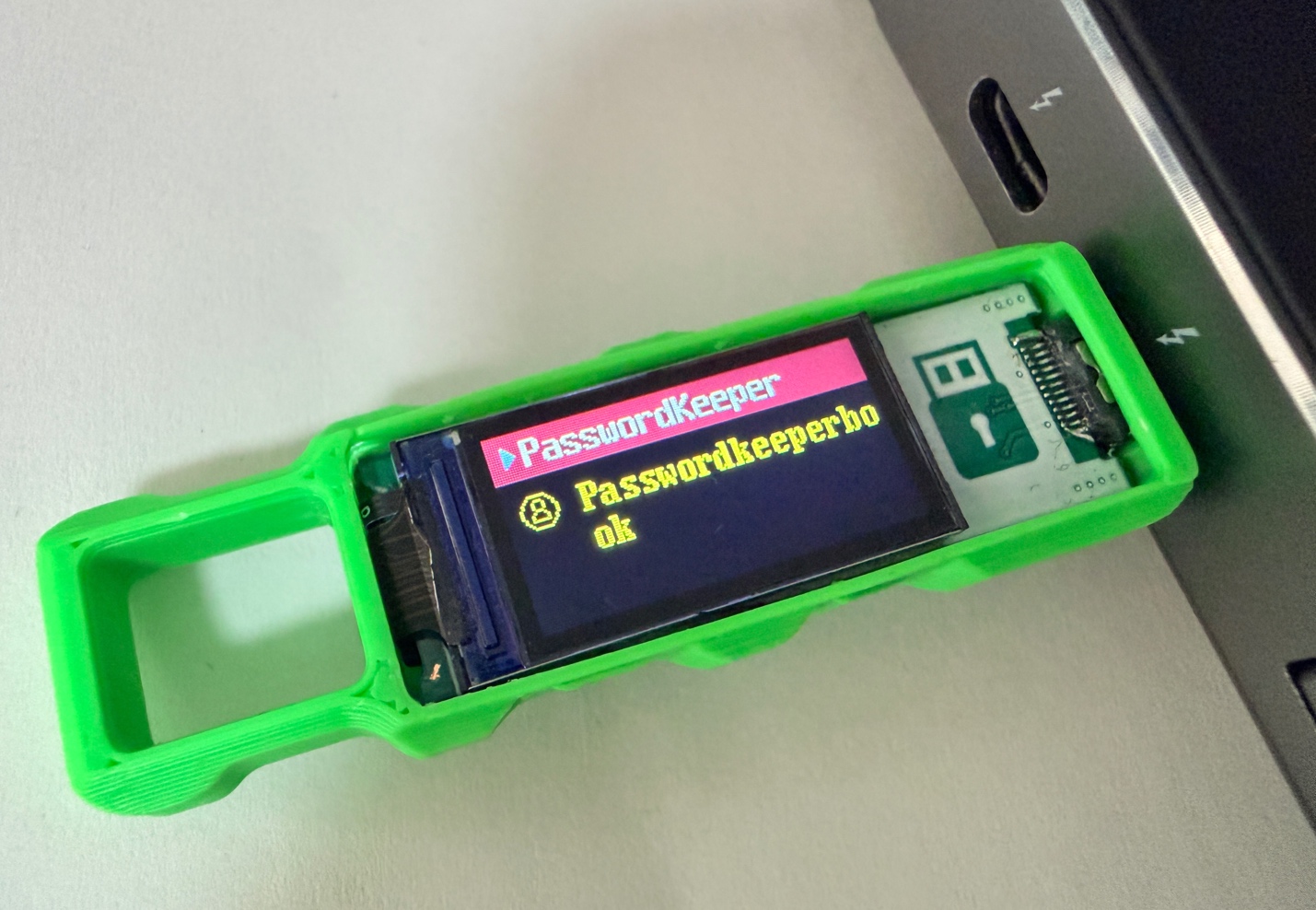
Connect your PWDSTK device to your Mac using the Type-C cable.
Make sure the cable is properly connected to both the device and your computer.
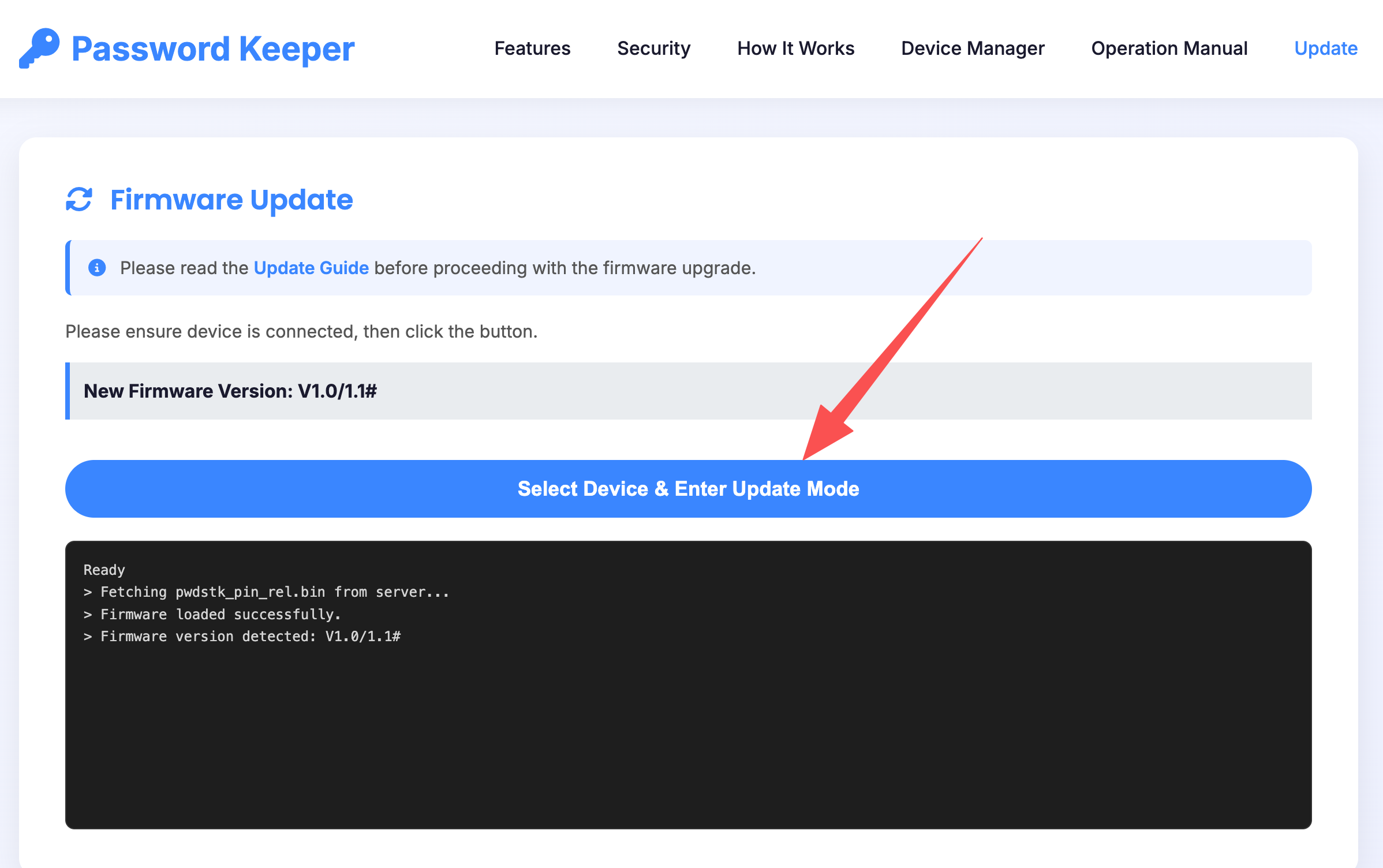
Open Google Chrome browser and navigate to the firmware update page.
Click the "Select Device & Enter Update Mode" button.
If your device has an encryption key, enter your password to unlock first.
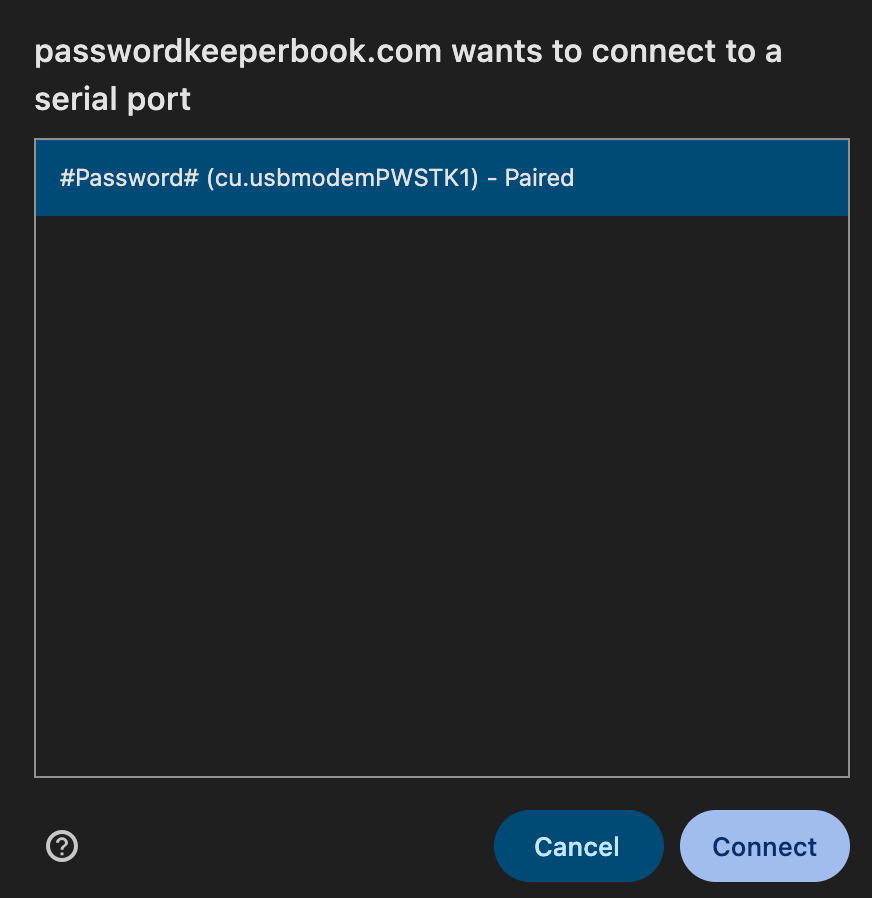
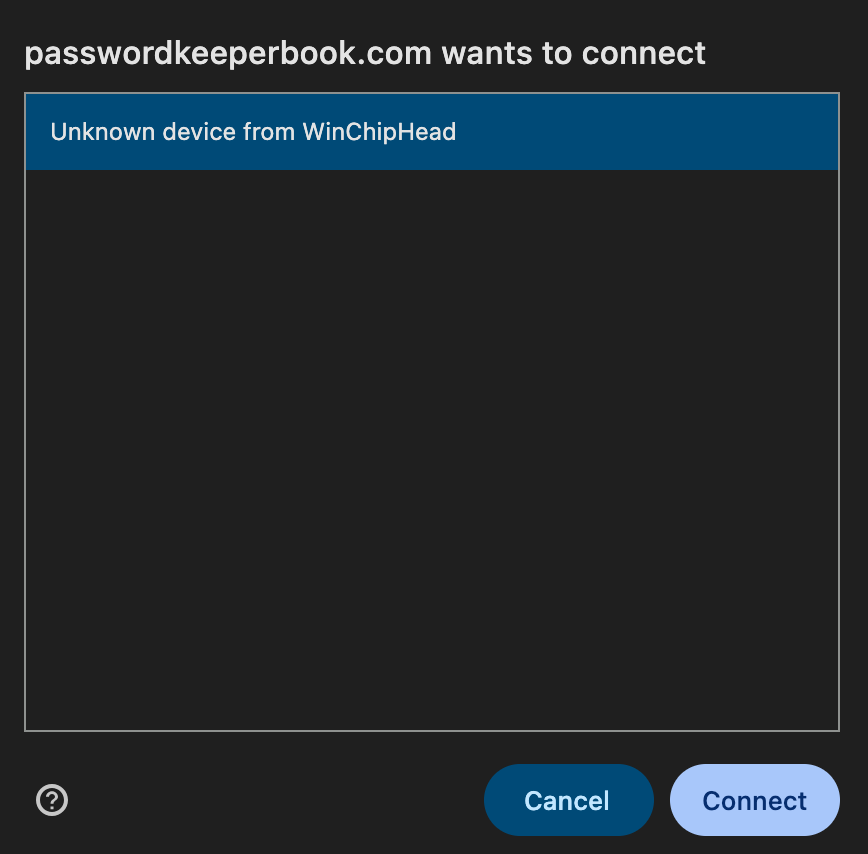
In the popup window, select your PWDSTK device from the list, then click the "Connect" button to proceed.
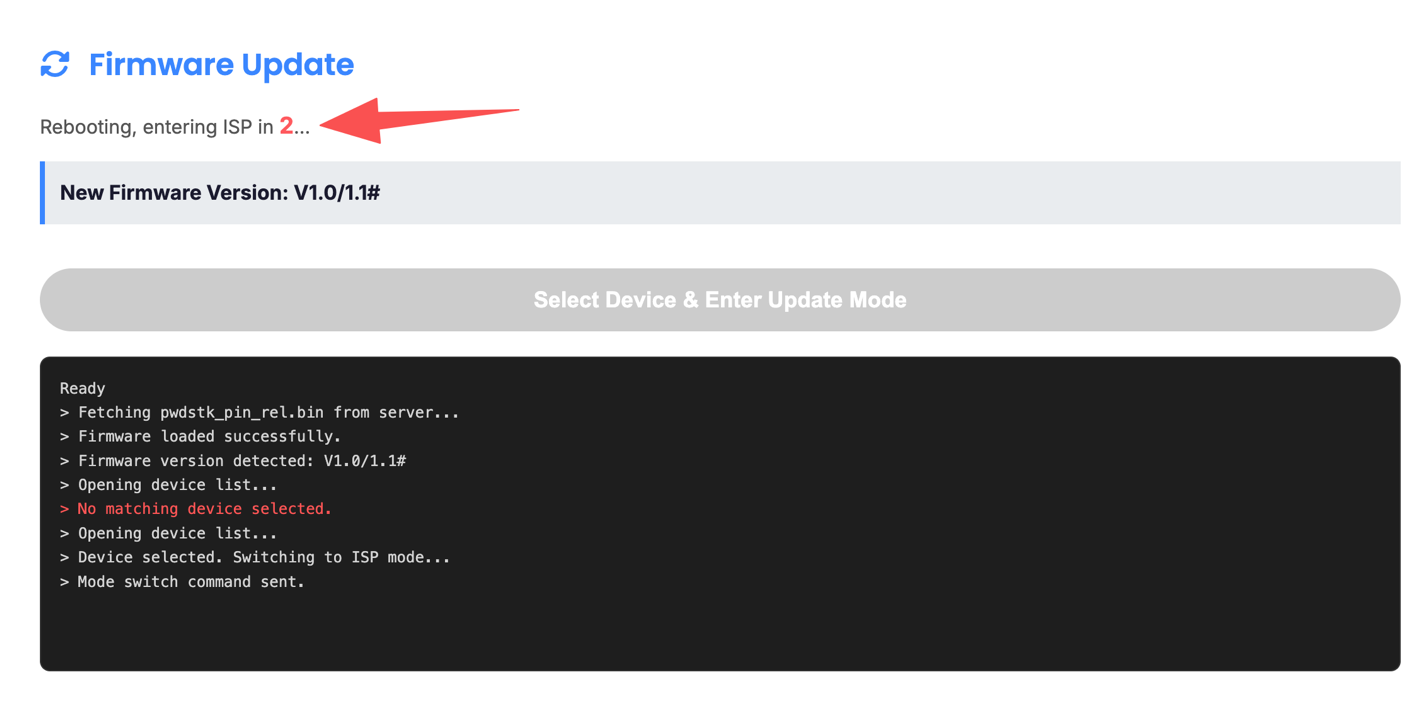
The page will display a countdown: 3 → 2 → 1.
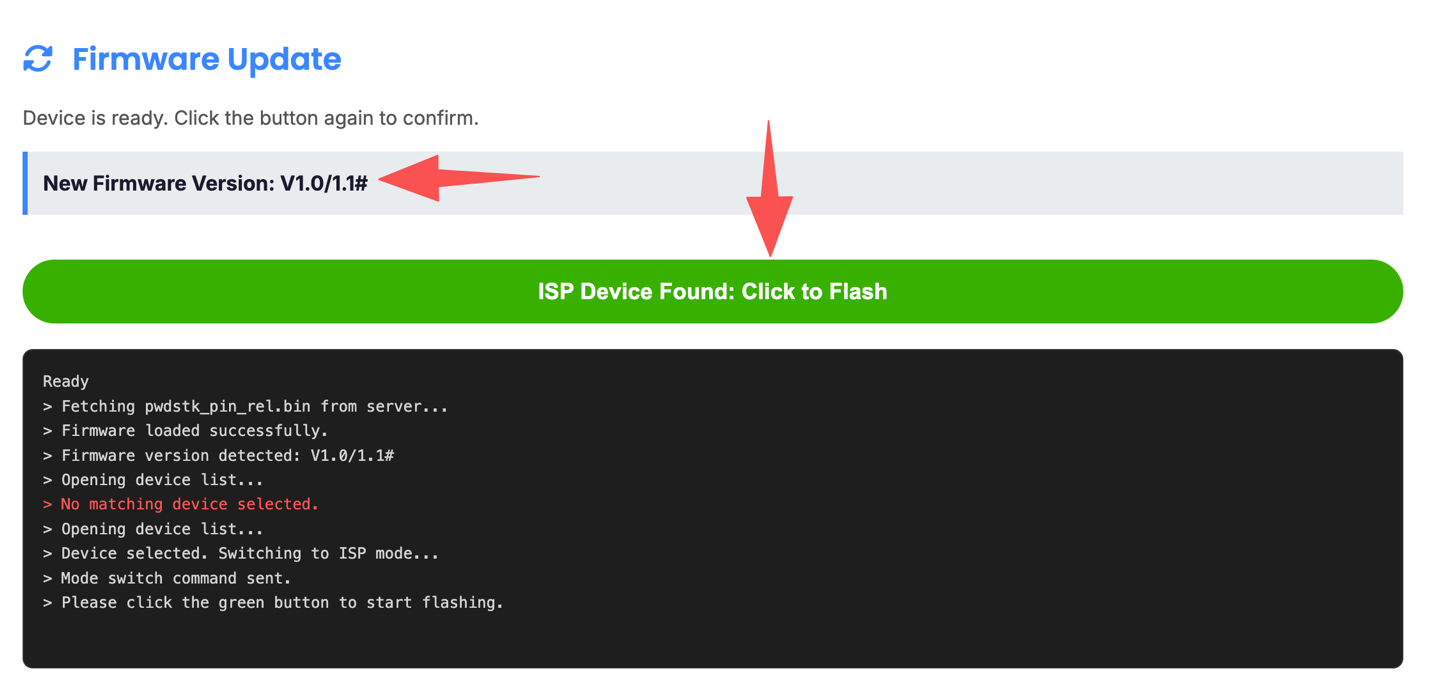
Wait for the countdown to complete. You will see the message: "Device is ready. Click the button again to confirm."
Click the green button: "ISP Device Found: Click to Flash" to begin the firmware update process.
In the popup window, select your device again and click "Connect".
If you see a failure message, refresh the page and repeat the previous steps.
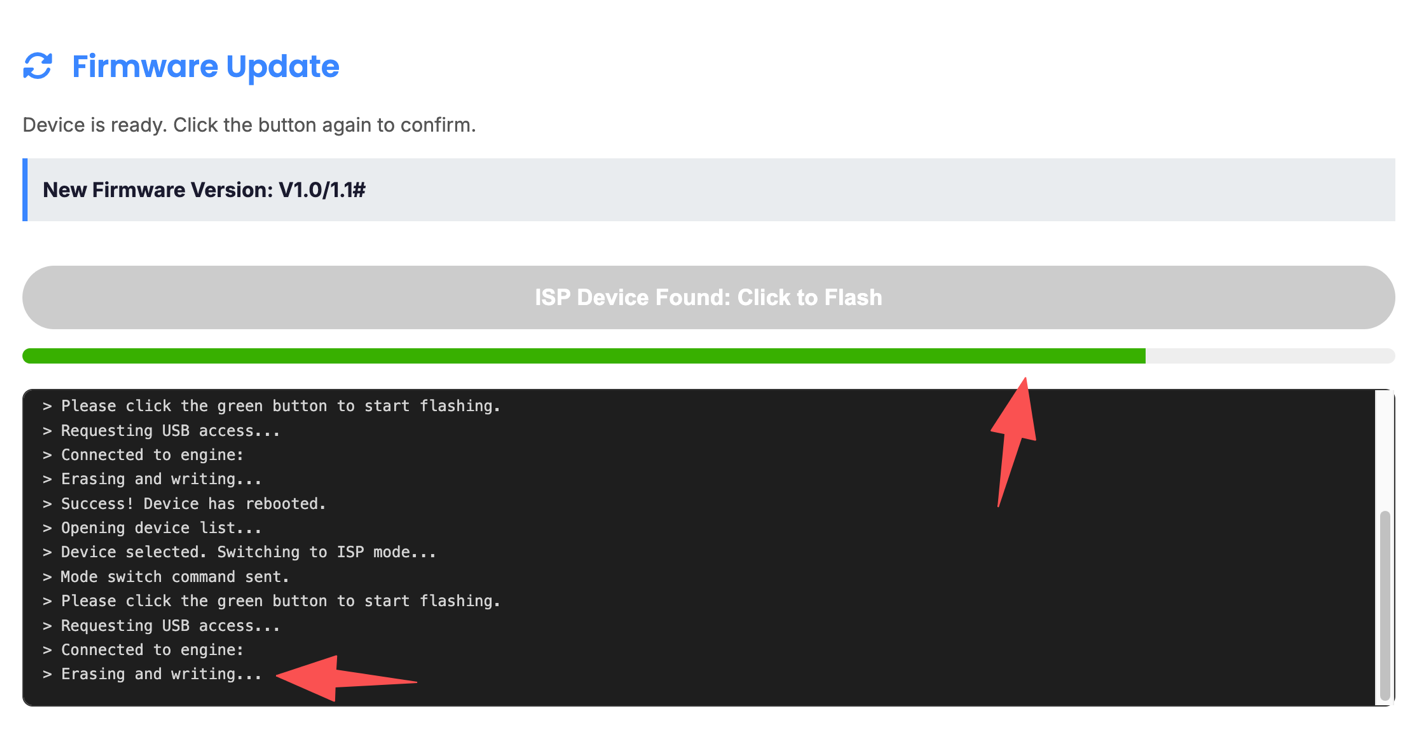
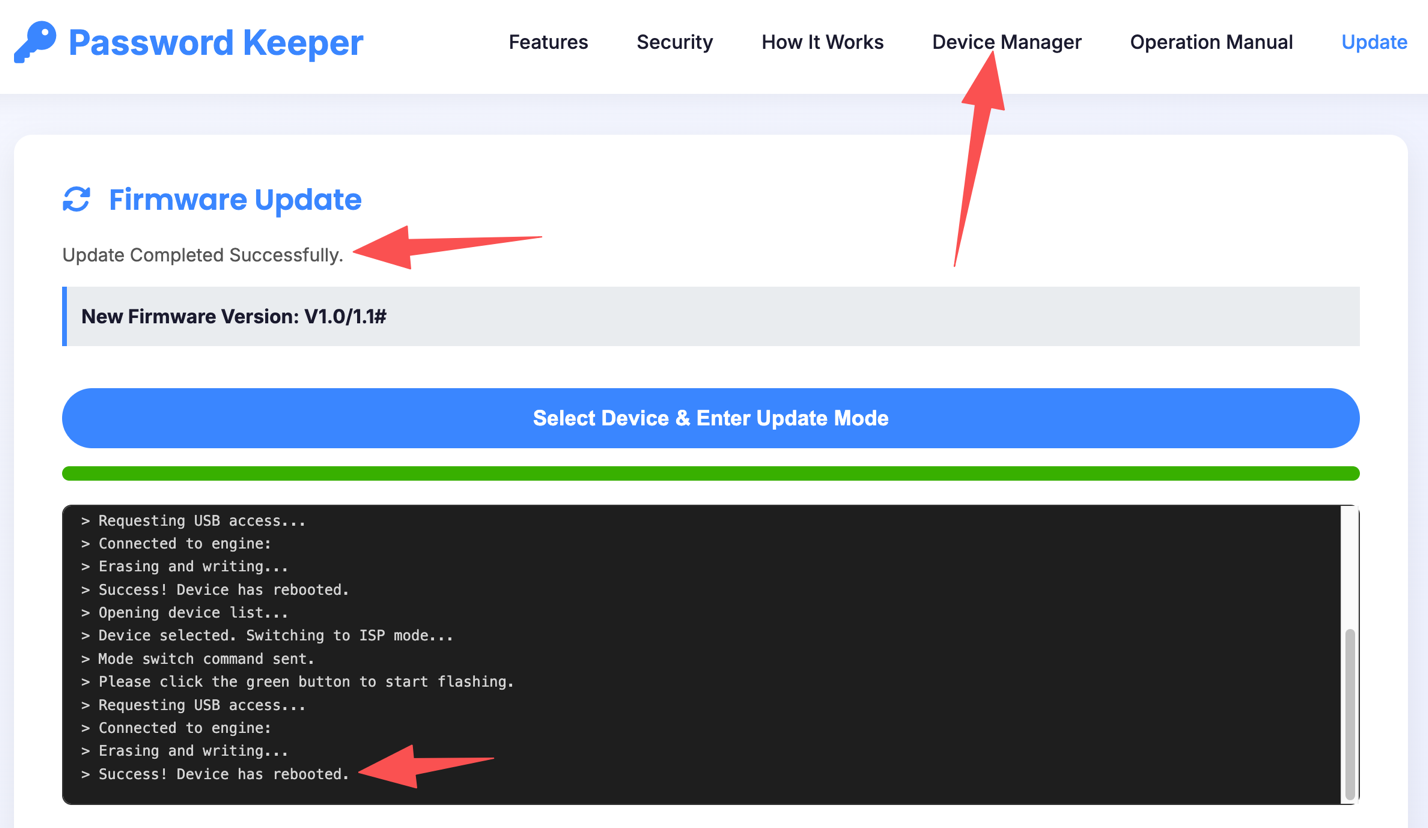
The black status box will display "Erasing and writing..." and the green progress bar will show the update progress.
Do not disconnect the device during this process!
When finished, the status box will display: "Success! Device has rebooted."
Congratulations! Your device firmware has been updated successfully. You can now return to the Device Manager page for editing.
Windows 10/11 Update Instructions
First, connect your device to your computer using the Type-C cable or a USB-A adapter.
Then download and open the update software:
Download PwdStk V1.1
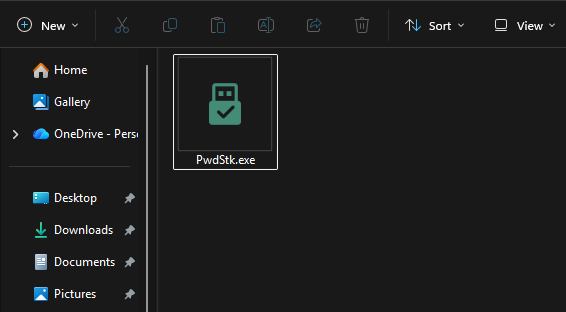
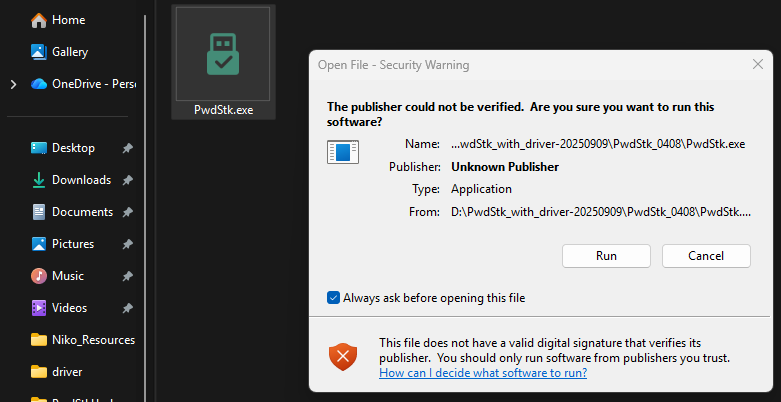
If you see a "Security Warning" prompt, click the "Run" button to proceed.
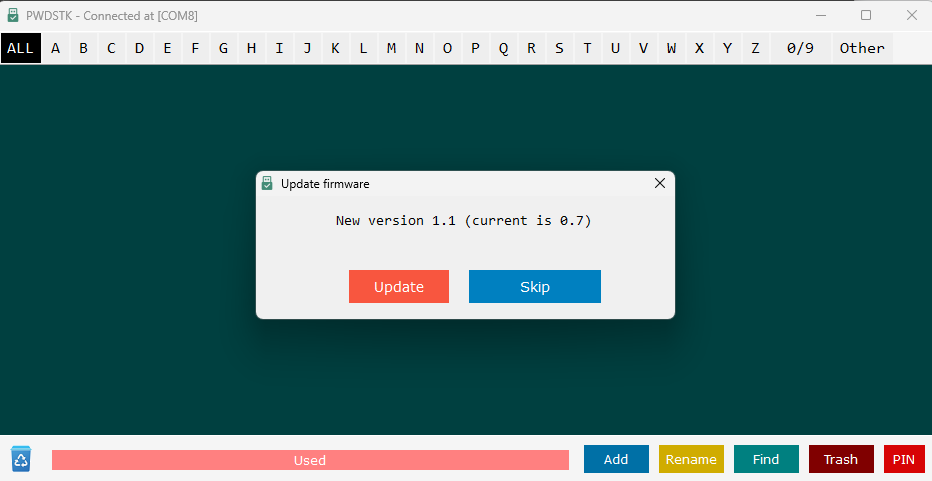
If your device firmware version is too old, you will see an update prompt. Click the "Update" button to begin.
The software will detect your device and begin the automatic update process. Follow the on-screen instructions to restart your device when prompted.
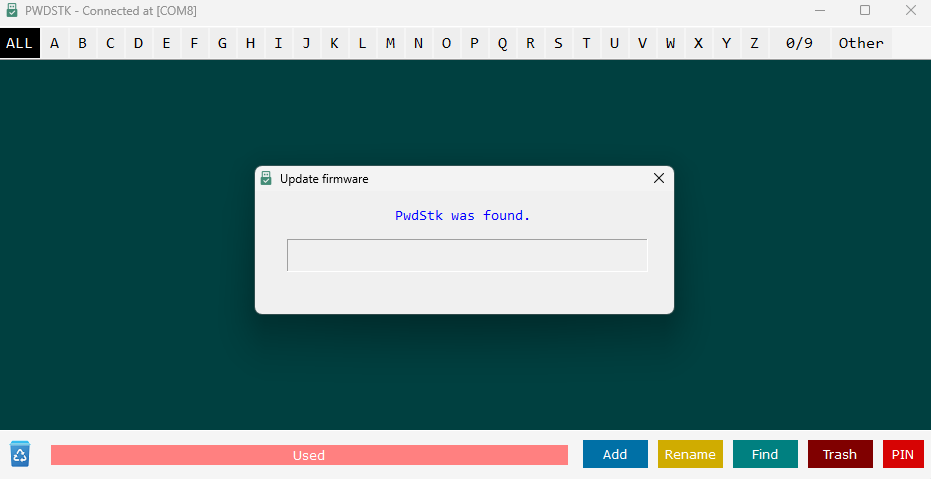
After restarting, reopen the software. It will prompt you to connect your device.
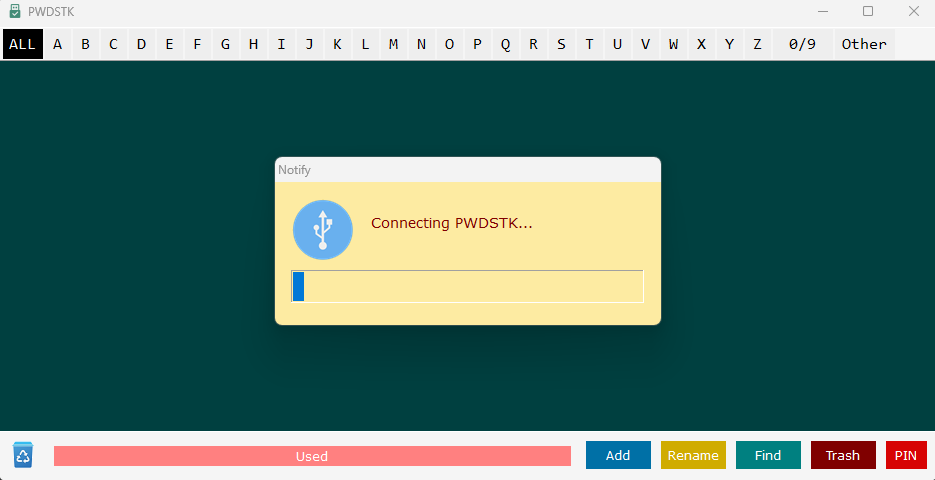
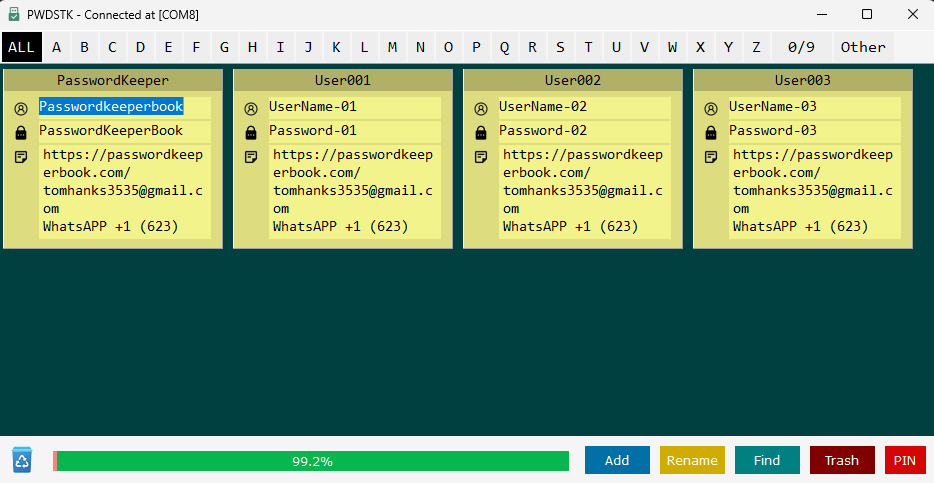
Once connected successfully, the software will read all data from your device. You can now use the software to edit and manage your passwords and information. On Windows, you can also use Device Manager via Chrome browser to edit and manage your device content. All done! Your device is now up to date with the latest firmware.